MyanPing 1.1.31 and newer
How to use the MyanPing launcher
A quick tour of the Windows app, screen by screen. Your games go through MyanPing; everything else stays on your normal internet.
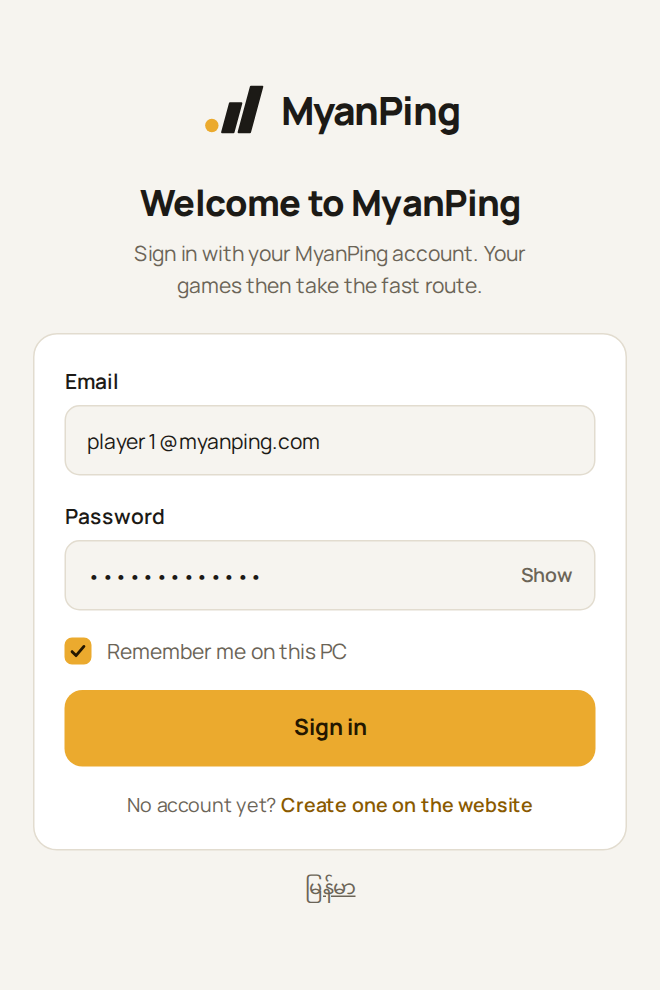
1. Sign in
Sign in with the email and password of your MyanPing account. Keep “Remember me on this PC” ticked so you only do this once.
2. Choose your games, then start
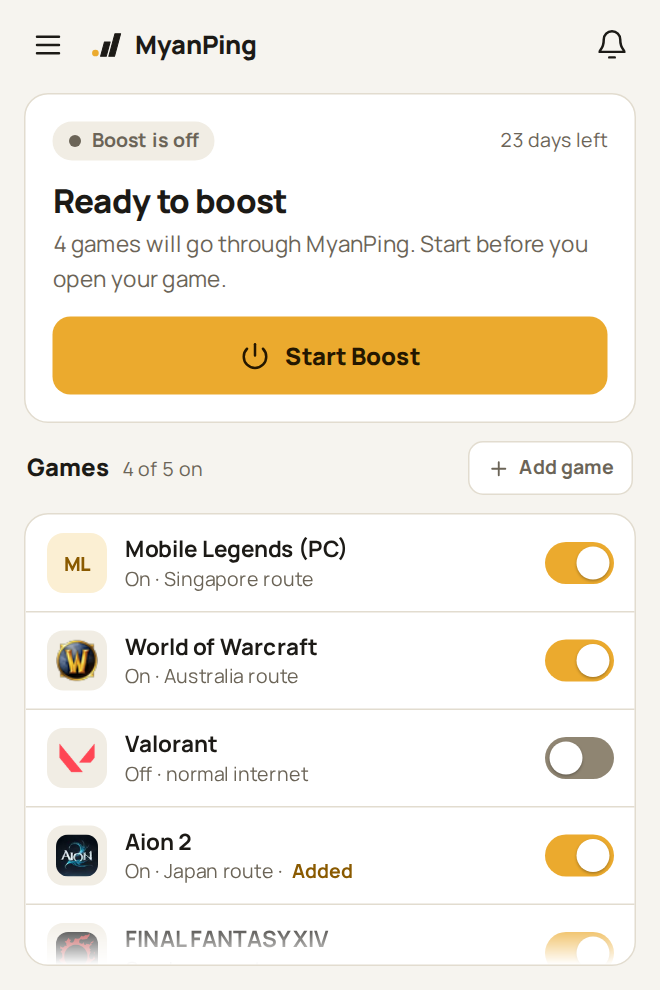
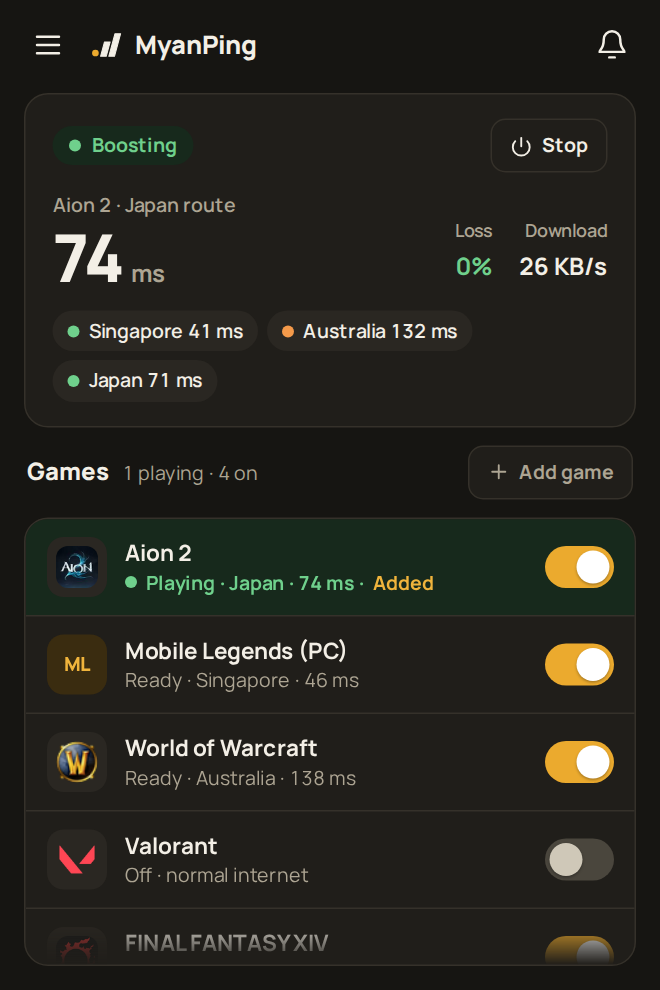
Every supported game has a switch. Turn on the games you want boosted, even before you start. Then press Start Boost before you open your game.
Tip: start Boost first, then open the game. A game that is already running needs to reconnect.
3. While you play
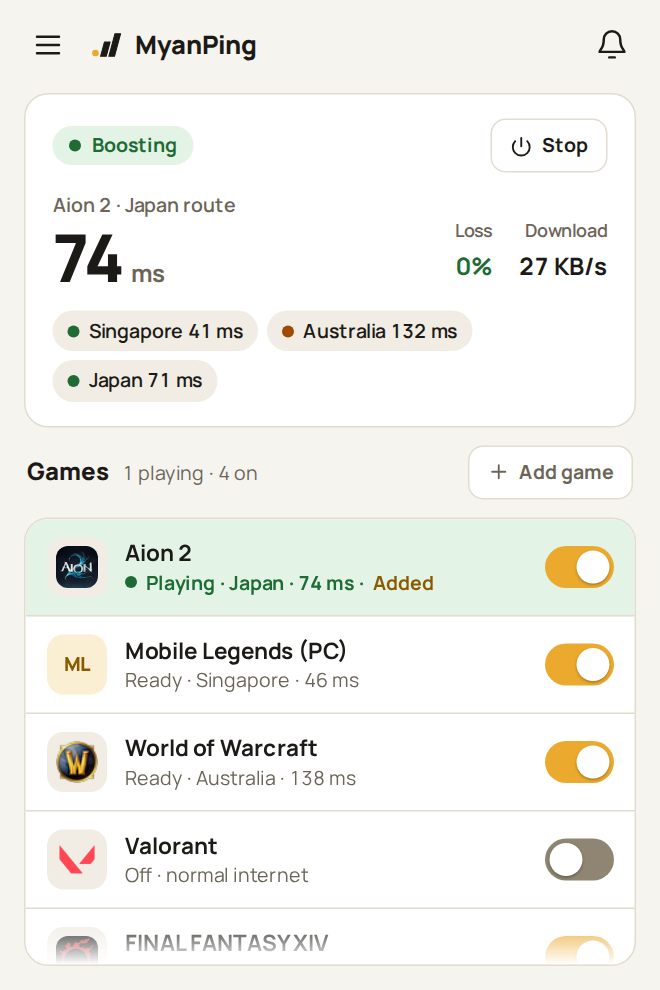
The big number is the ping of the game you are playing, with loss and download next to it. The chips show each region’s ping. The game you are playing moves to the top in green.
Press Stop when you are done. Days left shows on the main screen; a reminder appears when 3 days are left.
4. Game details
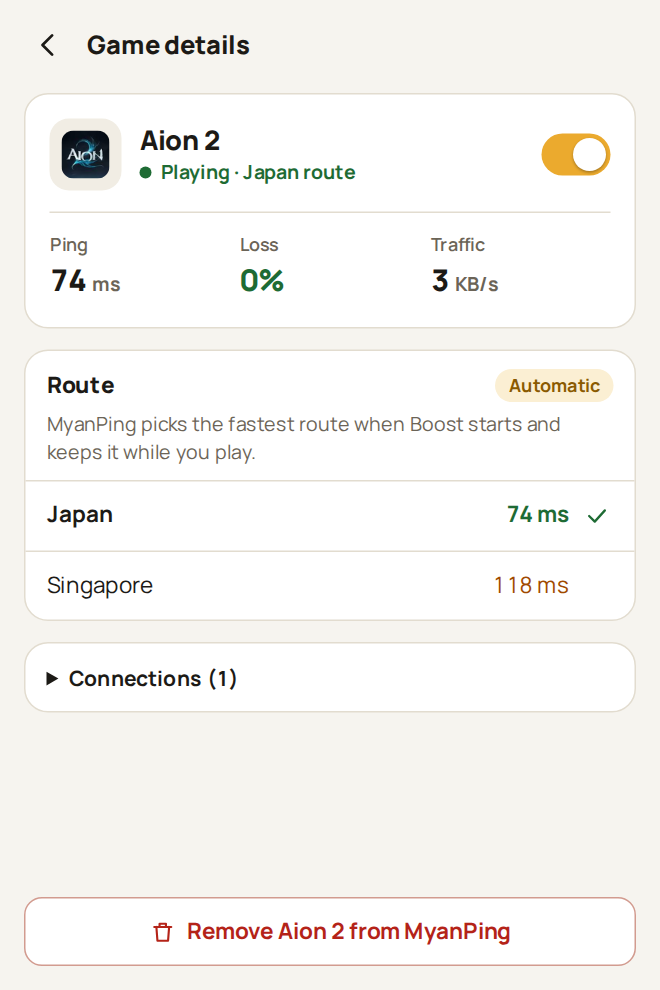
Tap a game’s name to see available relay measurements, estimated game-server latency, traffic and connections. Estimates are not the game’s own ping. MyanPing selects routes automatically and keeps them fixed during your session.
5. Add a game
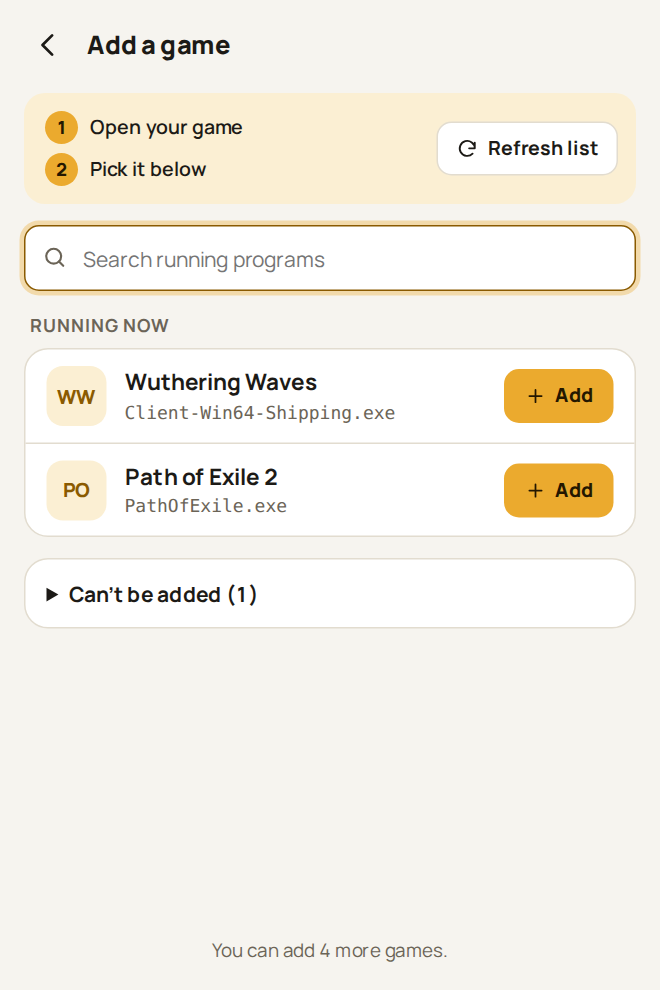
Game not in the list? Open it first, then press Add game and Add next to it. Browsers, chat apps and launchers can’t be added. To remove a game you added, open its details.
6. The menu
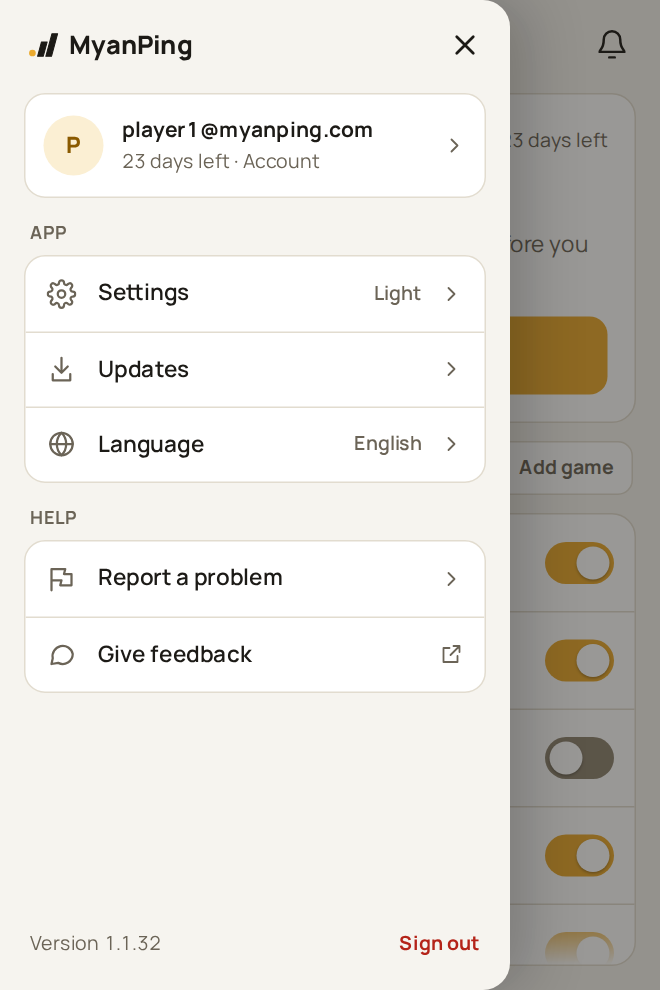
The ☰ button opens your account, Settings, Updates, Language, Report a problem and Give feedback. Warnings, like another VPN running, appear under the bell.
7. Settings and dark mode
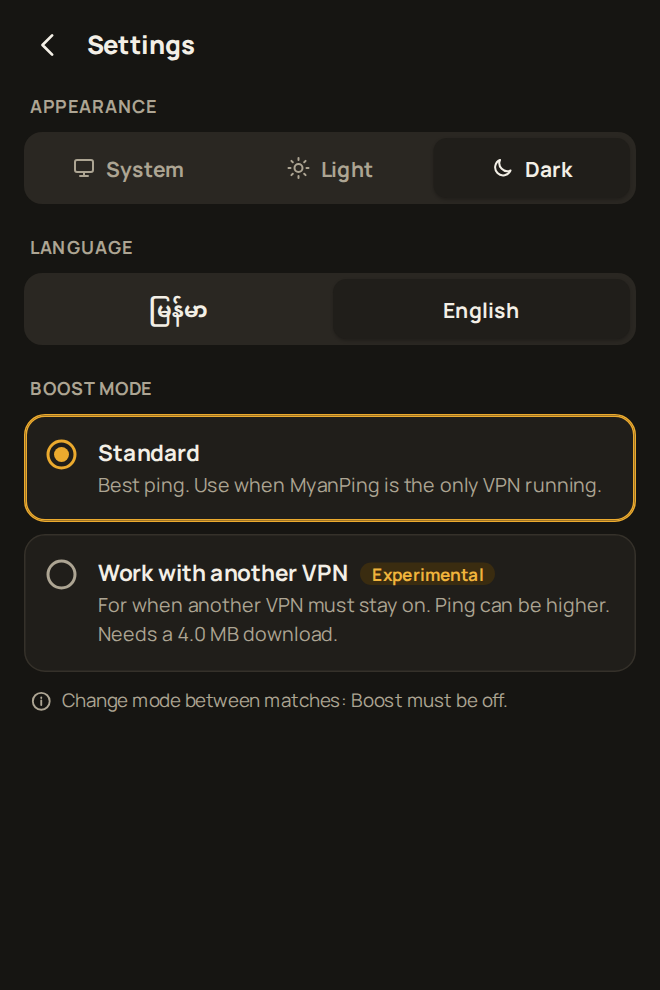
Choose System, Light or Dark under Appearance, switch between မြန်မာ and English, and pick the Boost mode. Use “Work with another VPN” only if another VPN must stay on.
8. Report a problem
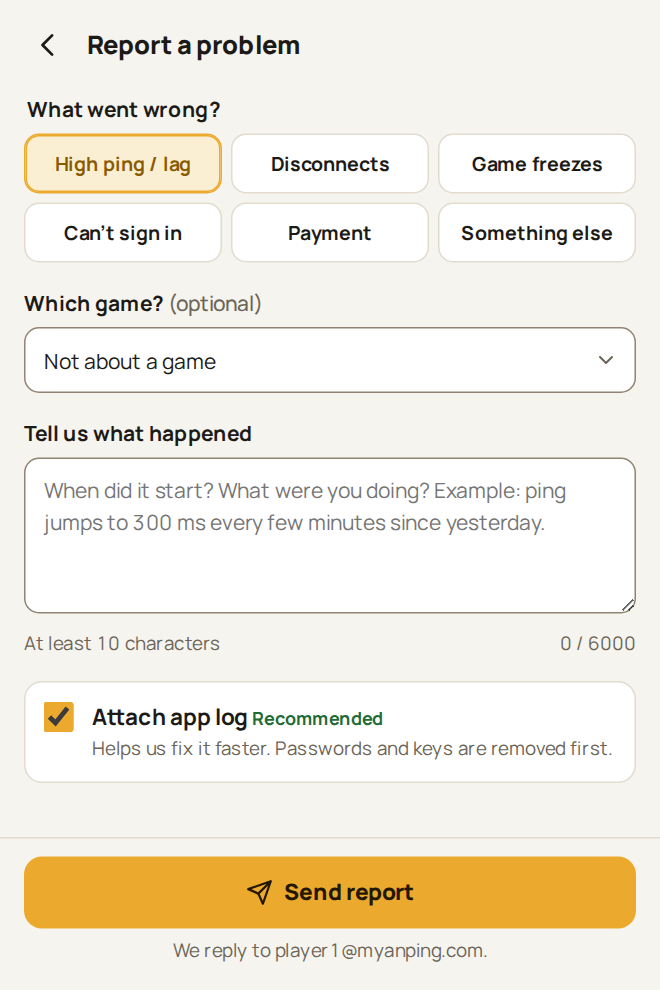
Pick what went wrong and the game, describe it in at least 10 characters, and keep “Attach app log” on. We reply by email.
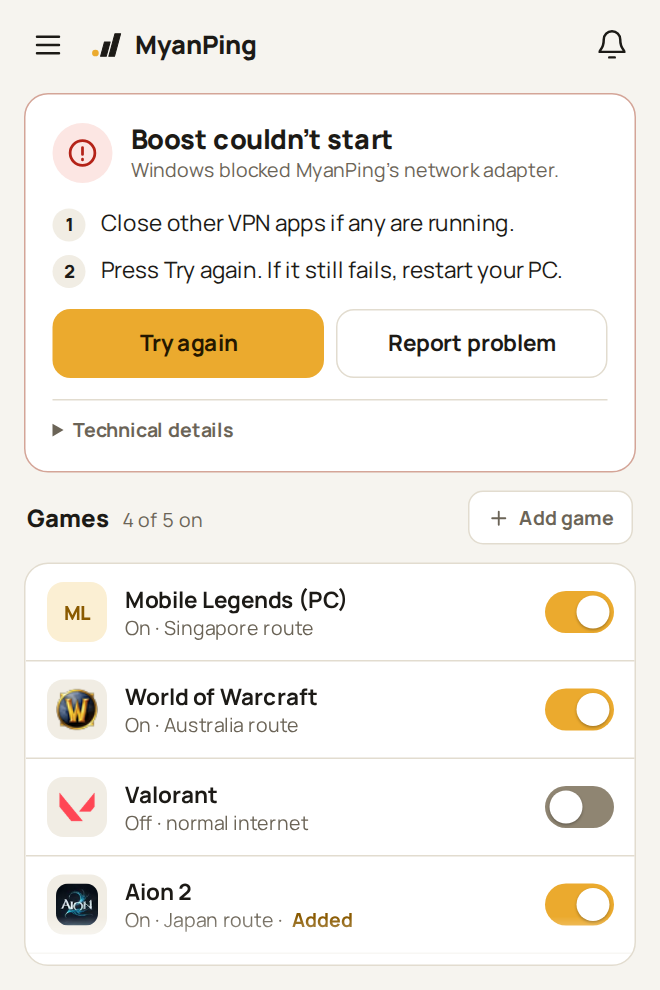
9. If Boost can’t start
MyanPing tells you why and what to do, step by step. Press Try again after fixing it. If it keeps happening, press Report problem.