Windows
Install the desktop launcher, sign in and start Boost. Manage games, updates and support from the app.
Windows downloadMyanPing helps Myanmar players find a better connection to supported game servers. Turn on Boost, launch your game, and let the app handle route selection.
Windows · Linux · Steam Deck · Burmese & English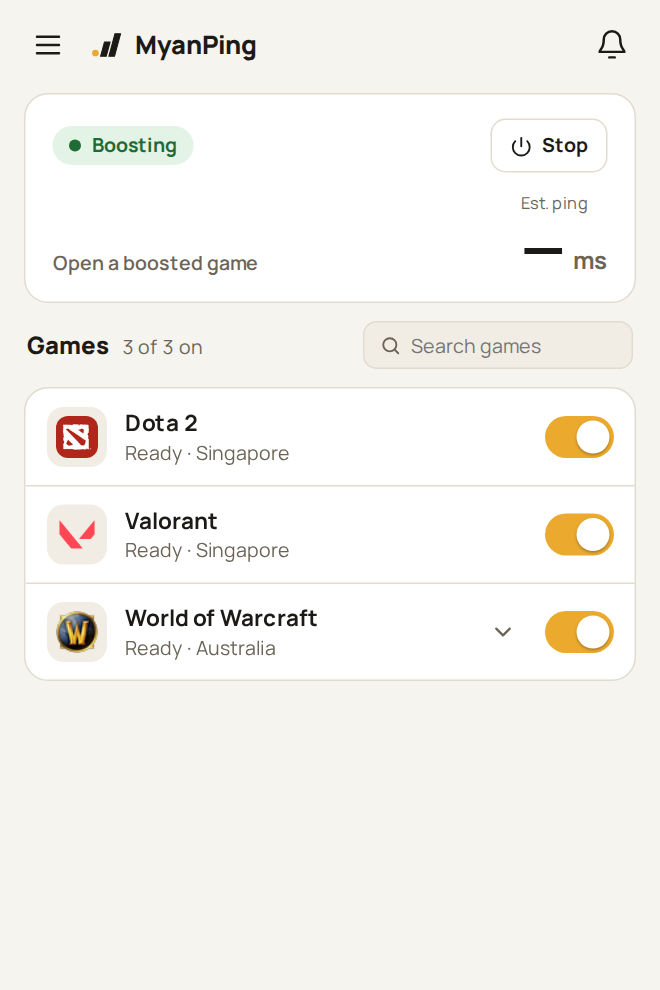
One launcher for your games, route information and support. Take a look before you install.
MyanPing chooses a route automatically. When a game server can be measured, those measurements help inform the choice. The route stays fixed during your session to avoid unnecessary changes while you play.
No game-server measurement yet? The launcher uses a default route. Restart Boost between matches when you want it to compare routes again.
Turn individual games on or off. Add a supported running game from the launcher when it is missing from your list. Browsers, chat apps and game launchers are not added as games.
Changing Boost for a game with an active connection can interrupt it. Make route changes between matches.
Need a VPN for other apps? MyanPing is a game booster: its optional coexistence mode gives supported games their own boosted route while your VPN stays open. Designed for steadier gameplay when you need both.
Explore VPN coexistence modeEnable the games you want to boost. WoW Retail, Classic and Forever share one switch. You can also add a supported running game from the launcher.





Gameplay and selected login services use MyanPing. Recognized launcher downloads and patches stay on your own connection, at its normal speed.
Open a game to see what MyanPing can measure. Missing data stays unmeasured instead of becoming a made-up ping.
Results depend on your ISP, connection, game server and location. MyanPing cannot guarantee a specific ping, prevent every disconnect or increase your FPS.
Install the desktop launcher, sign in and start Boost. Manage games, updates and support from the app.
Windows downloadFollow the Linux installation guide for the desktop app and available packages. A command-line booster is also available.
Linux installationStart with the Steam Deck installation steps. The optional Decky plugin provides controls from Game Mode.
Steam Deck setupCheck the download page for current builds and requirements. There is no macOS build yet.
Open the menu and choose Report a problem. Tell us the game, when it happened and what you saw. You can choose whether to attach the app log; passwords and keys are removed before it is sent.
Replies arrive by email and in your account’s support area. We do not promise an instant response.
Open account support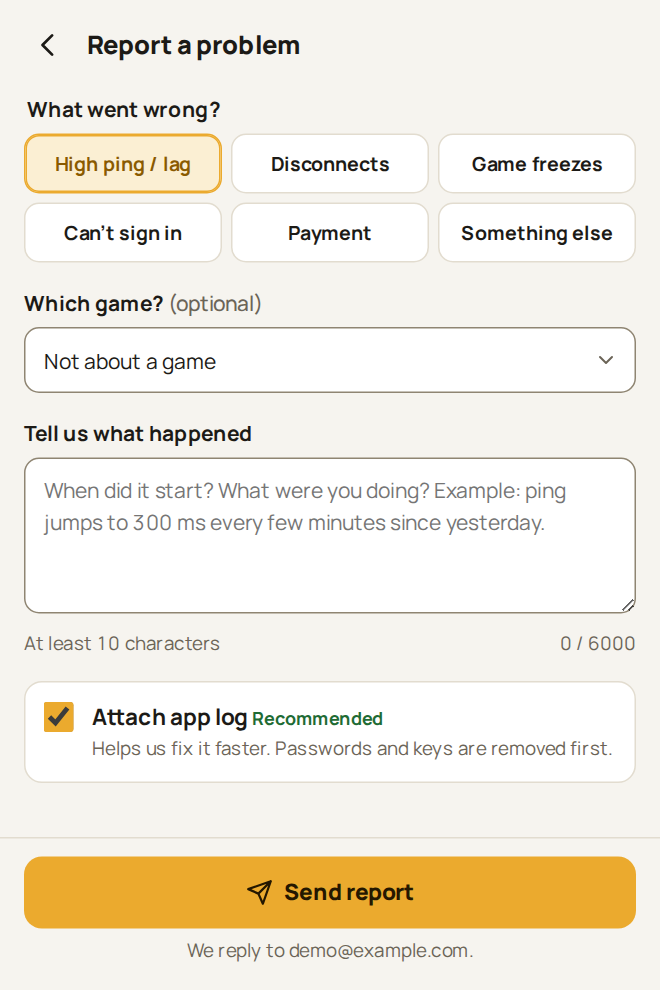
Create an account and verify your email to start beta access. Install the launcher, turn on Boost before opening your game, and tell us how it goes.
Join the betaNo payment step
For eligible new players, with one trial per PC. Access expires without automatic renewal or billing. Staff may extend beta access. Paid purchases are currently paused.
MyanPing routes supported gameplay and selected login services through its relays. Everyday browsing and recognized game downloads keep their existing internet connection. The optional VPN coexistence mode is available when another VPN needs to stay on.
Yes. MyanPing never closes your other VPN. Standard Boost works alongside a VPN that only routes some apps, for example Jump Jump set to Discord only. If your internet cuts out while both are on, set the other VPN to route only the apps you need, or turn on the experimental VPN coexistence mode in Menu → Settings (Windows). Compatibility with every VPN is not guaranteed.
In MyanPing for Windows, use the hamburger menu for Settings, Updates, Notifications, Language and Account. Click a game to see its traffic rates, connections and automatic route. Fresh route estimates may be shown; they are not the in-game ping. Changing a live game requires confirmation, and game on/off choices are saved.
No. MyanPing is in beta testing and payments are paused. No card, transfer or payment screenshot is needed, and nothing renews automatically.
After you verify your email, your account receives beta access automatically. Download MyanPing and sign in with the same email and password. One beta access per PC.
Try it on your own connection during the beta. Results vary with your ISP, location and game server. Compare your in-game connection with Boost on and off; no improvement is guaranteed.
MyanPing is available for Windows 10/11, Linux and Steam Deck. There is no macOS build yet. Current beta access supports up to five devices at the same time.
Built-in profiles include Dota 2, Valorant, League of Legends, CS2, FFXIV, Aion 2 and World of Warcraft. WoW Retail, Classic and Forever share one switch. Use Add game for eligible running games; browsers, chat apps and game launchers cannot be added as games.
Steam downloads and the Battle.net download agent use your own internet, including their non-web connections. Battle.net account services can use the WoW route, and relevant DNS lookups use the relay. Riot account, friends-list and chat services use Singapore, while other Riot launcher web requests, including patch downloads, stay direct. MyanPing does not set a download-speed cap. If your ISP blocks the download CDN itself, a direct download may still fail; boosting login does not bypass every CDN block.
The launcher handles route selection automatically using the available game profile and measurements. Keep your route fixed during a session, and restart Boost between matches to compare again when needed. Available regions depend on the game.
While boost is on, MyanPing gives supported game processes Above Normal CPU priority where Windows allows it. Turning a game or boost off restores the priority MyanPing changed. Downloaders, login helpers and anti-cheat keep their existing priority. This may help when the CPU is busy; it does not guarantee higher FPS or lower ping.